Getting started
setshed is your band's shared workshop: one cloud library of stems, videos, lyrics and setlists that the whole band edits together, plus sync to an M-Live B.Beat over your network.
Everything runs in your browser. The free desktop agent adds the things a browser can't do on its own — talking to your B.Beat, live guitar tone, and recording riffs through your amp.
1. Create your band
Sign up, name your band, and you're in. Whoever creates the band is its admin.
Invite the rest from ☰ → Manage band. They get a link, and their account joins your band automatically however they sign in.
| Role | Can do |
|---|---|
| admin | Everything, including members, billing and deleting songs |
| write | Edit songs, mixes, setlists, lyrics — everything musical |
| read | View, play and practise. Nothing they do touches the band's library |
2. Bring your songs in
Already own a B.Beat? On the band page, next to Create band, Upload a .backup to seed a band brings your entire device library in at once. The fastest start there is.
For everything else, + at the top of the song list opens the add menu:
- ✎ Blank song: start an empty song and add stems as you record them.
- 📁 Upload stems…: WAV, MP3, FLAC, AIFF, M4A, OGG, AAC, WMA. One song per upload. Include the song's video or a still image in the same selection and it's attached automatically.
- ✨ Song from a mixed file (split into stems)…: one mixed file, taken apart on the server. See Editing a song.
- 🗜 From a .zip bundle…: a zip of stems, same as an upload.
- 🎵 Import a song (.export)…: the B.Beat's own one-song format. Select several at once and they import as a batch.
- ✨ Seamless opener (intro + song)…: a walk-on video baked onto a song. See Setlists & shows.
- ⤵ Pull a song from B.Beat…: copy one song off the connected device. Shown once the agent sees your B.Beat.
To get a song back out, right-click it → ⬇ Export… and choose For a B.Beat (.export) or Stems (.zip).
Everything is converted to the B.Beat's own format (48 kHz / 24-bit mono stems) on the server, so what you hear in setshed is what the device plays. When an upload finishes you get a summary of exactly what landed — stems, video, anything skipped — and a chime, because big uploads take minutes and nobody watches a progress bar.
Interrupted upload? Re-select the whole batch. Songs already imported are skipped rather than duplicated, so you never have to work out where it stopped.
3. Save
Save version… commits your changes for the whole band.
No save ever overwrites another. Each one is kept, so if a song gets mangled you can bring back just that song from the day it was right — right-click it → Restore an earlier version…. See Versions & restoring.
Saves are incremental: unchanged audio is never re-uploaded, so saving a 60 GB library after a fader move takes seconds.
4. Get it on stage
Install the desktop agent (Windows · macOS · Linux) on a computer that shares a network with your B.Beat. It lives in your tray; setshed finds it automatically.
Then 🔌 Device → ⤴ Send. Full detail in B.Beat & the agent.
If setshed says it can't see the agent, it's almost always your browser, not the agent. Chrome and Edge now require permission before a website may talk to your own computer: 🔌 Device → 🔓 Let setshed reach this computer, then Allow.
Where things live
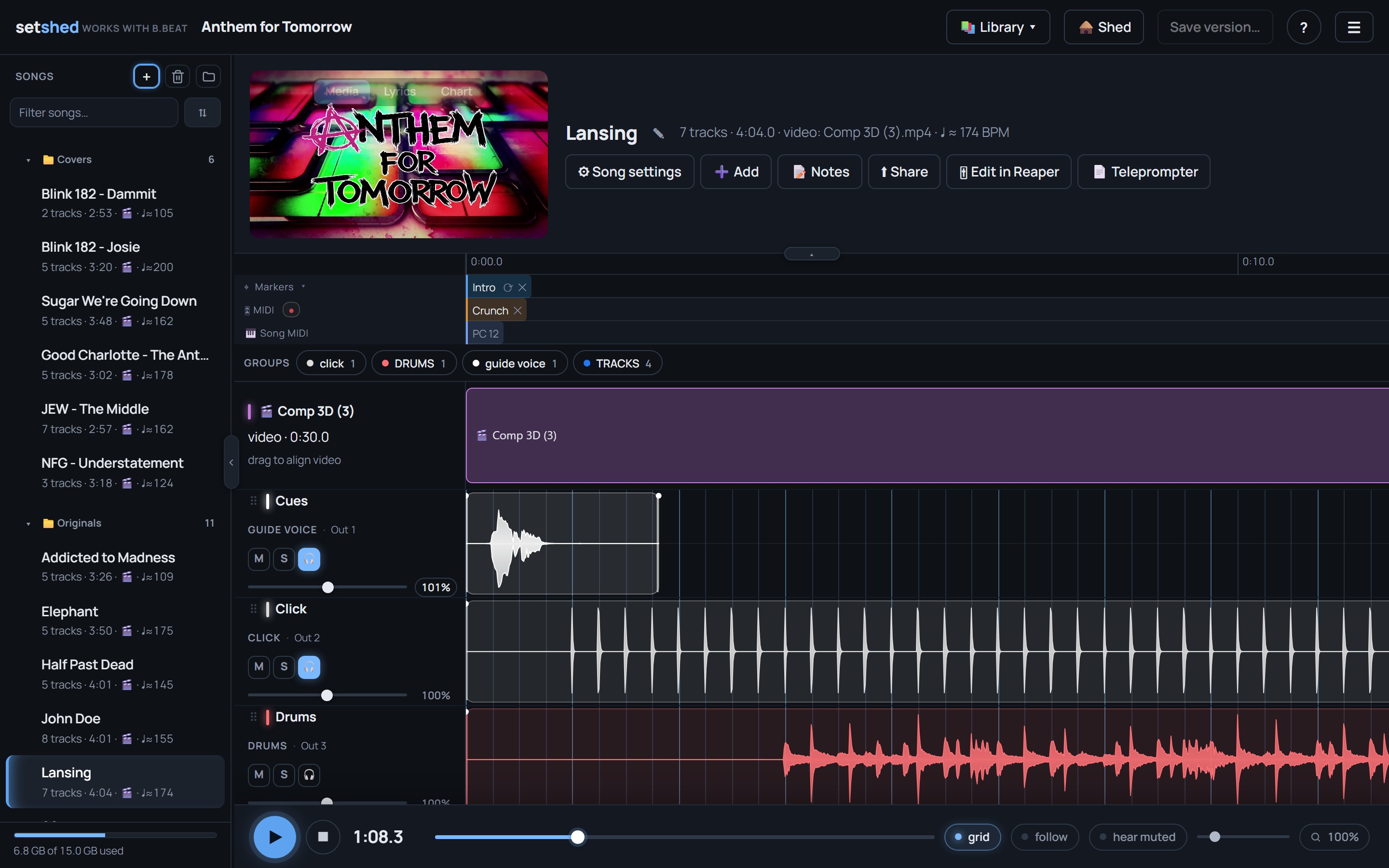
| Song list (left) | Filter, folders, drag to reorder, right-click for song actions. + adds songs (blank, uploads, split, zip, .export, opener, pull from B.Beat) |
| 📚 Library | 🎬 Media · 🎵 Setlists · 🎛 MIDI Rig |
| 🛖 Shed | Riffs and lyrics, the band's idea space, in a drawer |
| Save version… | Commit your changes for the band. A badge counts what is still unsaved |
| 🔌 Device | Everything device-related: ⤴ Send (with a check against the device and Compare audio inside the dialog), ⤵ Check & save to cloud, ⌨ Enter the address manually, ⚙ Wi-Fi & device settings, and whether the agent and the B.Beat are connected |
| ? | ❔ How it works · 📖 Docs · 🎓 Take the tour · 💬 Community & bug reports · 🔒 Privacy & your data |
| 🔔 | Notifications: what changed while you were away |
| ☰ | Profile & account, Manage band (admins), Enter rehearsal space, Settings, Reset edits, Switch band, Log out |
| 🎧 (bottom right) | Your private rehearsal space |
| Transport (bottom) | Play, stop, time, seek bar, grid / follow / hear-muted toggles, zoom. Sits along the bottom like a media player |