Editing a song
Click a song to open it. The header carries its video and details, then the timeline with one lane per stem, and the transport runs along the bottom of the editor like a media player (on desktop). Drag the tab under the preview to resize it, or fold it down to a strip; the Media / Lyrics / Chart buttons sit on the preview itself. Song settings in the song header opens a popover with the song's name, loop video, offsets and start offset.
The mixer
Each track head shows the track name with a second line reading FAMILY · Out N (the mixer family and the output channel). Hover or select the track and that line swaps to the routing controls. Each row has:
- M / S — mute and solo.
- 🎧 — send this track to the B.Beat's headphone (AUX) output, on top of its normal output routing. The two are independent: a track can go to Out 3 and the headphones. This is where click and cue tracks usually want to be if you monitor from the unit itself.
- Volume — the fader, in percent. 100% is the device's unity. Double-click the readout to go back to 100%.
- Group — which mixer family the track belongs to (click, DRUMS, TRACKS, FX…). Families set the output channels, so assigning a family routes the track.
- Out: the B.Beat outputs this track plays from, one or several. The button opens a drawing of the unit's rear jack panel: click jacks to turn them on or off, and the readout says what you picked (Out 3 + 11). Clear all empties it. If the panel shows fewer jacks than your unit has, Only N outputs? Set your B.Beat model… inside the picker takes you to the setting. Setting a family usually routes the track for you (Auto-route by family, in Settings → Routing).
- ± semitones — transpose this one stem. Baked into the audio when you save. Double-click the readout to go back to 0.
- vox — formant preserve, for natural-sounding vocal shifts.
- dB: clip gain, also baked in on save. It is a stepper: the ▼ and ▲ chips move it in 0.5 dB steps, the scroll wheel works over it, and clicking the value lets you type one.
- ⇄ — replace this stem's audio with a new file, keeping every setting.
- ✕ — remove the stem.
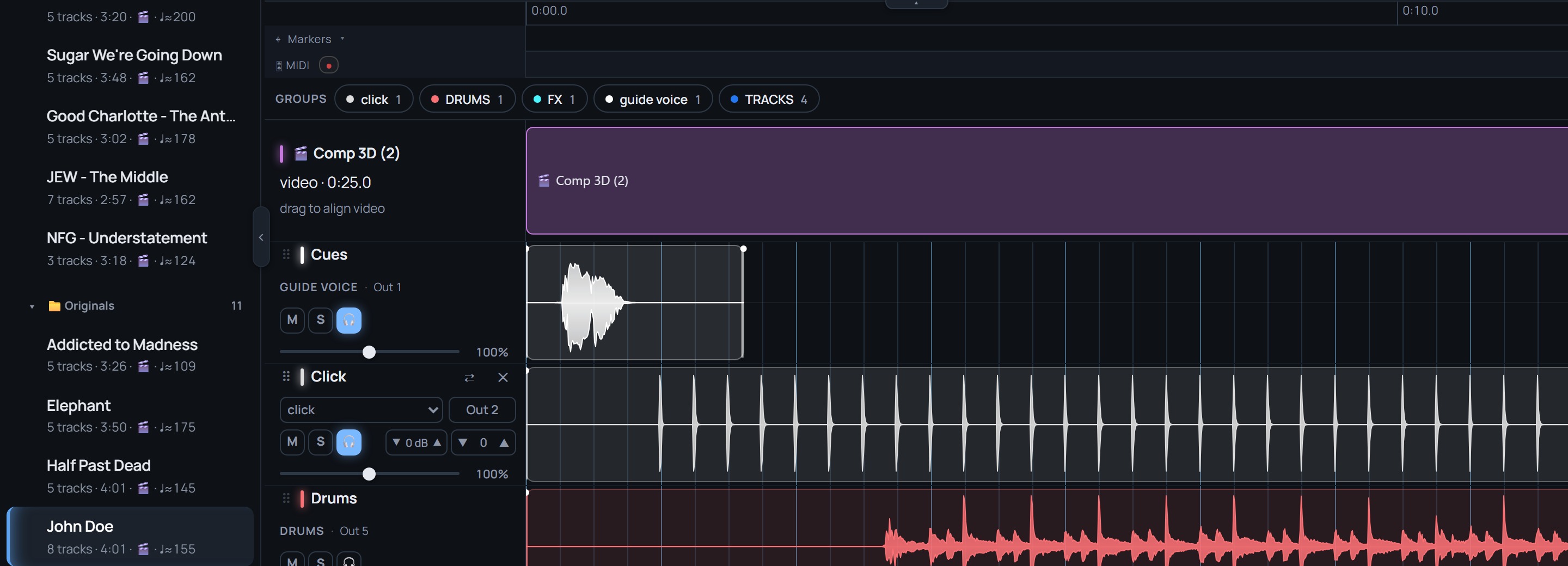
Families appear as chips in the GROUPS strip above the tracks, which stays pinned while you scroll the stems. Click one to mute the whole family in this song. Manage them (add, rename, recolour, set output channels) under ☰ → Settings → Routing → Families. The device's own Disable switch is there too; disabling a family silences it in every song, library-wide.
Stereo pairs
A B.Beat has no stereo track, so a stereo file imports as two linked mono tracks (with Keep stereo on, the default under Settings → Editing → Stereo import). setshed draws the pair as one unit, a bracket joining the two rows, and the song header counts it as one stereo pair. Mute, solo, level, gain, transpose, family and name set on either half drive both. Routing is the one thing that stays per half: L and R each have their own Out.
- The ⟷ L or ⟷ R chip on a half opens the pair menu, with Split into two mono tracks (L and R).
- The other way round: ctrl-click two mono tracks and the selection bar offers ⟷ Link as stereo pair. The upper row becomes L.
The timeline
- Drag a stem left or right to nudge its start (its lead).
- Trim handles at each end, with fades — all non-destructive until you save.
- Grid locks to the click track, so nudges and loops land on the bar.
- Zoom with the slider; click the readout to return to 100%.
- Markers — right-click the marker lane to add a section marker (Verse, Chorus…). Or press M during playback to drop one at the playhead. Click the Markers lane corner to fold the lane away when you need the room.
Transport: the bar along the bottom holds play, stop, the time readout, the seek bar, the grid / follow / hear-muted toggles and zoom. Keys: Space play/pause · ← → step one beat (Shift for a bar) · Ctrl/⌘+Z undo.
Video and images
Drop a video on the song, or click the preview window to upload a file or pick from the library — media already in the backup can be reused without re-uploading.
- Drag the video lane to align it against the audio.
- Loop video (in Song settings) for short clips that need to cover a long song.
- Play video audio lets you hear the video's own track while aligning it to the click — a preview aid only; it is never part of the mix.
The Media manager (📚 Library → 🎬 Media) lists every video and image with the songs using it, so you can see what's shared before you change anything. ⬇ Save on a row downloads that file to your computer under its library name, so a video is never only in the cloud.
Song-level controls
Most of these live in the Song settings popover, opened from the button in the song header.
- Song transpose — shifts the whole song. This one is native on the B.Beat: the device does it live, so it stays reversible rather than being baked into stems.
- Start offset: trim silence at the top of the whole song. The tail is trimmed on the timeline instead: right-click where the song should stop → ✂ End song here. ↺ Clear song-end trim undoes it.
- Notes — pin a note on the song for your bandmates; they see it and get an activity ping.
Split a track into stems
A song that arrived as one mixed file (a Karaoke Version download, a bounce from a session, a board recording) can be taken apart in setshed. The quickest way is the song list's + menu: Song from a mixed file (split into stems)… takes the file, makes the song, and opens the split dialog on it. For a song you already have, open it, press + Add and choose Split a track into stems…. Pick the mixed track and choose four stems (drums, bass, other, vocals) or six (adds guitars and keys). Keep stereo gives each stem as a linked left/right pair; off, each stem is one mono track, which is what most B.Beat libraries use. The work runs on the server and takes about a minute per song. The stems come back as ordinary tracks, each in the family its name says, with a click track synthesised at the song's tempo if the song had none (read from the drums when nothing else says). The original track is muted, not removed, so you can compare and delete it when you are happy.
Separated stems are rehearsal grade. Muting a part to play along works well; soloing a single separated part exposes some bleed, and bass with a lot of grit tends to come out thinner than the real thing. For an exact stem of your own part, Karaoke Version's track editor can still download one track at a time, and setshed imports those like any other stem.
Click sound
Libraries built from several sources carry a different click on every song: a cowbell here, a beep there, a rimshot with a spoken count on the next. On any song with a click track, Add ▾ → Click sound… finds every click on the stem and which ones are bar lines, then renders a new click stem in a sound you choose, placed on exactly the same milliseconds. Timing is never touched: pushes, tempo changes and count-ins survive. Only the sound changes.
- Pick a built-in sound, or Sample from another song to borrow its click.
- Preview plays the first eight seconds before anything changes.
- Apply to this song, or Apply to every song with a click track, then Save.
- A spoken count or cue words on the click track are left out, not mistaken for clicks. If the bar lines cannot be told by sound, every fourth click is accented, and the dialog says so.
Reaper round-trip
With the agent running, open a song in Reaper with its stems and video already laid out, work on it, render, and pull your renders back in. Renders land in <project>/rendered and re-import against the tracks they came from — including tracks you added or renamed in Reaper.